Guide
How to Set Up Dual Monitors
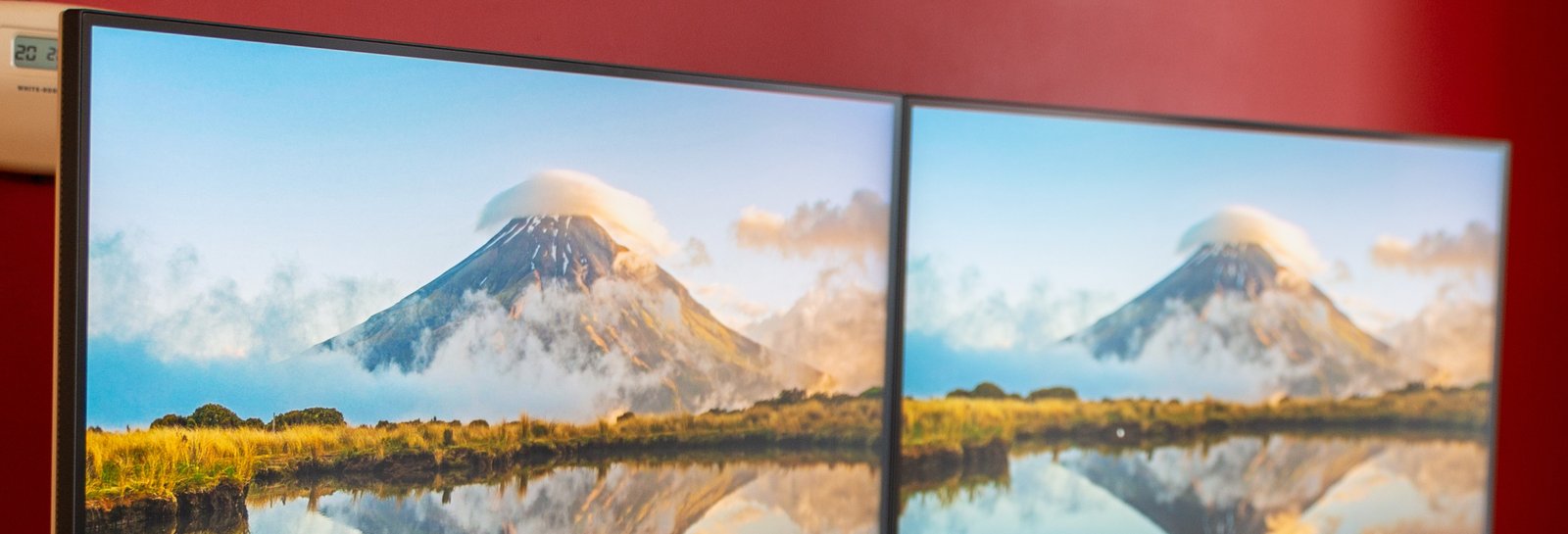
Two monitors on one desk sounds like it should just work: plug in the second cable and go. What actually happens more often is one screen stays black, or Windows mirrors the same image on both instead of extending the desktop, or the two panels show visibly different colors. None of that means broken hardware. It means a setting hasn’t been touched yet.
Check the cables and ports before touching a setting
A graphics card usually has more than one output, but not all of them run at the same speed. An older HDMI port can cap out below the refresh rate a second monitor is capable of, even when the cable itself is fine. Matching each monitor’s port type, HDMI, DisplayPort, or USB-C with video, to an open port on the card avoids a screen that flickers or won’t wake from sleep.
Laptops complicate this further. A laptop with a single HDMI port and no DisplayPort or Thunderbolt needs a dock or a USB-C hub that supports two independent video streams, not just power passthrough.
Windows extends the desktop by default, it doesn’t mirror it
Right-clicking the desktop and opening Display Settings shows both monitors as numbered rectangles. Windows extends the desktop across both rather than duplicating the same image twice, which is usually the point of a second monitor to begin with. Dragging the rectangles to match how the physical monitors sit on the desk keeps the mouse from vanishing off the wrong edge as it moves between them.
The monitor holding the taskbar and Start menu is the primary display, set with its own checkbox further down the same settings page. Games and older programs sometimes launch on the primary display no matter which monitor last had focus, so picking the primary early saves a second trip back to this menu.
Mismatched resolution and scaling make windows jump in size
Two monitors from different generations rarely share a native resolution, and Windows lets each one keep its own resolution and its own scaling percentage. A window dragged from a 100% scaled monitor to a 150% scaled one can shrink or blur for a moment while it redraws. That’s normal, not a sign either monitor is misconfigured.
A few settings worth checking before moving on:
- Each monitor’s resolution matches its native panel resolution, not a scaled-down default
- Scaling percentage is set per monitor, under “Scale and layout”
- Orientation is correct if a second monitor is mounted in portrait
Physical placement decides eye strain more than any menu does
Two factory stands rarely put two screens at the same height, even when both monitors come from the same brand. A dual monitor arm fixes that: the MOUNTUP dual monitor stand positions each screen independently from a single clamp or grommet base, for 17 to 32 inch screens weighing 4.4 to 17.6 pounds.
The monitor used most should sit directly ahead, with the second angled inward rather than placed flat beside it. That way the neck doesn’t have to fully turn just to glance over.
A refresh rate mismatch shows up as stutter, not a crash
Windows lets each monitor run its own refresh rate under Display Settings. A 60Hz secondary panel paired with a 144Hz primary one won’t throw an error, just a visibly less smooth cursor once it crosses onto the slower screen. Games that render across both monitors, rather than staying fullscreen on one, can stutter if the two rates don’t divide evenly into each other.
Capping the faster monitor to match the slower one fixes the stutter, at the cost of the higher refresh rate everywhere. That’s a tradeoff worth making on purpose, not one to discover by accident later.
Cable slack decides whether either screen can still move
An arm or a tiltable stand only helps if the cables reaching each monitor have enough slack to follow it. Pulling a monitor forward, or tilting it, and feeling a cable go taut is the moment a connector gets bent or yanked loose. Looping a few extra inches of slack at the base of each monitor’s cable run, instead of pulling it drum-tight from the wall or the PC, keeps future adjustments from turning into a repair.