Guide
Dual Monitor Desk Setup: How to Make Two Screens Look Like One
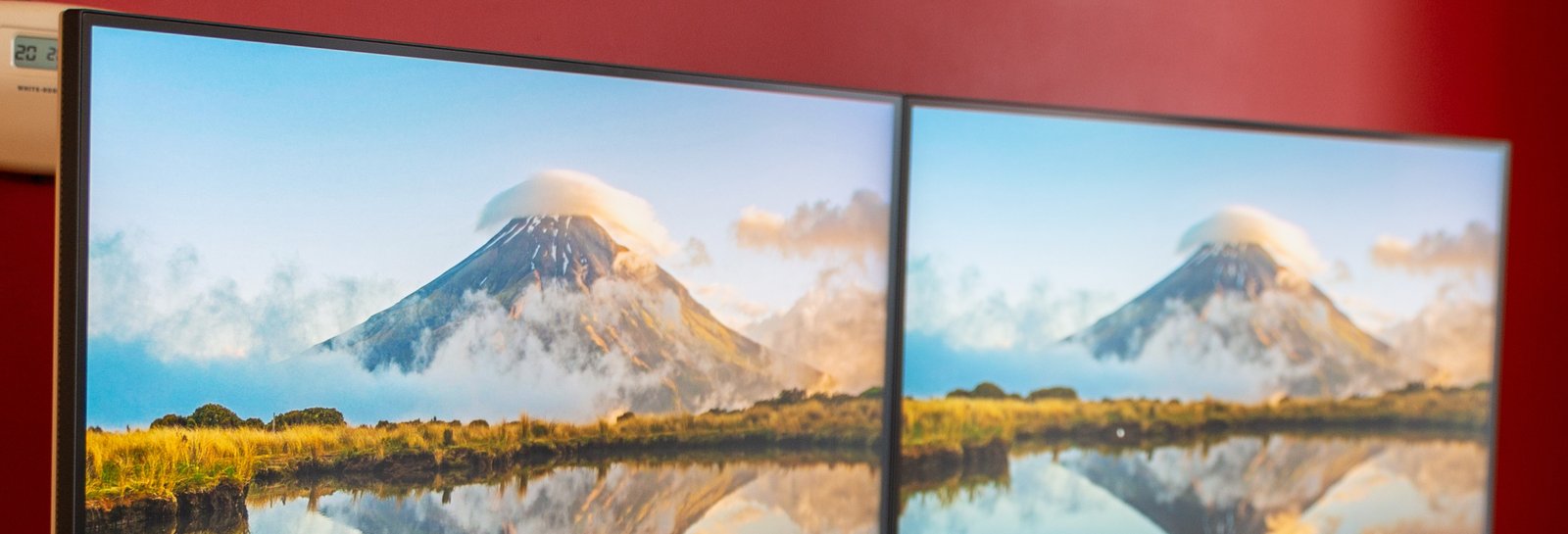
Most desk setups are built around one screen: one wallpaper, one light source behind it, one place the color has to work. Add a second or third monitor and none of that carries over automatically. The bezels split the color story into pieces, brightness and white balance rarely match between panels bought a year apart, and there’s less open desk left for the accent lighting doing most of the theme’s actual work. None of this requires buying different monitors. It requires treating the space between them as part of the setup instead of a gap to ignore.
The bezel gap is where a themed wallpaper falls apart
A single stretched wallpaper across two or three monitors sounds like the obvious move, and it’s the first thing that goes wrong. Windows and most Linux desktop environments treat a multi-monitor spread as one wide canvas by default. A mountain, a skyline or a nebula gets cut wherever the bezels land. The piece behind the plastic frame is simply gone. The image doesn’t fail gracefully either: a centered subject usually ends up split down the middle, with a chunk of it invisible behind the bezel on each side.
The fix isn’t a wider image, it’s a different one. Wallpaper sites and apps built for multi-monitor setups offer images designed to repeat per screen rather than stretch across all of them. Most wallpaper engines and several dedicated multi-monitor tools handle this natively. Each screen then gets a complete version of the scene instead of a fragment. For a themed desk, that usually means picking one wallpaper per monitor in the same color family, close enough in palette to read as one story, rather than forcing a single panorama to survive being cut into pieces.
Matching brightness and color before matching color temperature
Two monitors bought at different times, even the same model number, rarely ship at identical brightness and white balance. A themed desk makes that mismatch more obvious than a plain one does. The eye is already primed to read the two screens as one composition. Before touching color temperature, get brightness and contrast close using each monitor’s on-screen menu and a plain white or gray image, adjusting by eye until neither screen reads noticeably warmer, cooler, or brighter than the other side by side.
Once brightness is close, color temperature is the next thing to align, and it matters more on a themed desk than color accuracy does. A cooler-toned photo panel next to a warmer-toned accent monitor reads as two different desks stitched together, even if the color scheme is technically consistent between them. Most monitor OSDs include a handful of preset color temperatures (often labeled something like Cool, Normal, and Warm) that get both screens close enough without needing calibration hardware.
Cable routing gets harder with every screen you add
A single monitor on an arm has one power cable and one video cable to hide. A second arm roughly doubles that, and the two arms usually cross paths somewhere between the mount and the desk surface, which is exactly the kind of visible tangle that undercuts an otherwise clean themed desk. The fix that holds up is routing each monitor’s cables down its own arm, using the clips most arms already include. Letting both sets meet at the base and travel down as one bundle is what comes apart later.
A dual or triple arm that clamps to one point on the desk is worth an extra step: route power separately from video and data. Running them together down a single channel is often what causes interference. The result shows up as a flickering or dropping display days after the setup looked finished. Keeping them in separate channels on the arm, even a plastic zip tie is enough, avoids diagnosing a problem later that started as a cable management shortcut.
There’s less desk space left for accent lighting
One of the more overlooked side effects of a second or third monitor is how much desk-level space it removes for the accent pieces most of these roundups build a theme around. A wider stand or dual arm base takes up the center of the desk. On a single-monitor setup that space holds a themed mouse pad, a desk mat or a small lighting piece. The wider desk mats that usually carry the palette often no longer fit. A clamp-mounted arm like the VIVO dual monitor desk mount buys some of that back, since the clamp takes a few inches at the back edge instead of a wide base across the middle.
The workaround most multi-monitor desks land on is moving accent lighting off the desk surface and onto the monitors or the wall behind them, rather than trying to keep it at desk level. A light bar clipped to the top of one screen does the same color work a desk mat would. So does an LED strip run along the back edge of the desk. Neither one competes for the square footage a second keyboard tray or a wider mouse pad needs.
Mismatched monitor sizes and bezel colors don’t have to look mismatched
Not everyone upgrades to two or three identical monitors at once. A primary display next to an older secondary, or a black bezel next to a silver one, is common enough to plan around rather than treat as a problem to fix later. The size difference matters less than most people expect once the tops are aligned with an adjustable arm or a riser. Viewed straight on, a desk reads mismatched heights far more than mismatched screen sizes.
Bezel color is the harder mismatch to hide, since paint isn’t a realistic fix and matte vinyl skins made for monitor bezels are the more common workaround, sized to wrap the visible frame in a single neutral color. Black is the safer default across every theme. It is the one bezel color that disappears into a dark desk instead of fighting the accent colors around it. That matters more than making both monitors identical.
Before adding a second or third screen, check these first
A wider monitor spread changes more about a themed desk than it first appears to. Before buying a second monitor for a setup that already works, check three things:
- the desk has the depth for an arm or stand without pushing the screens too close to eye level
- there is a wallpaper source built for tiling, not one image stretched across both
- something on the desk or wall can still carry the theme’s color once the second screen takes the center Getting those three things settled before the monitor shows up is a lot easier than reworking a desk that already looks finished.
Hero photo: “New office setup (November 2020)” by Mack Male, cropped and resized, licensed under CC BY-SA 2.0. This adaptation is shared under the same license.