Guide
How to Choose a Docking Station for Your Desk
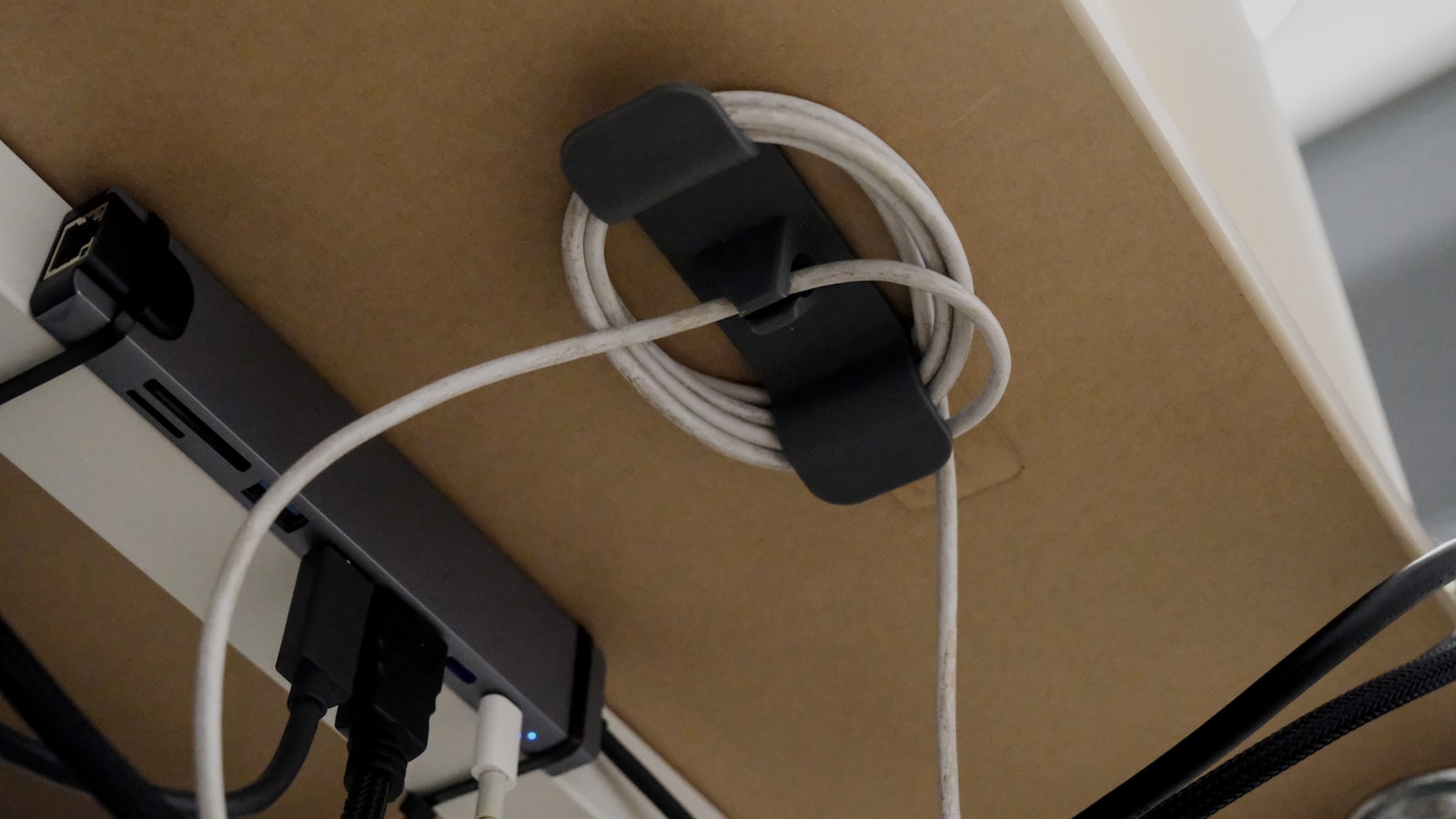
A laptop that needs a monitor, a keyboard, a mouse and a charger plugged in separately turns every sit-down into four separate plugs before any work starts. A docking station collapses that into one cable. Where it sits and what it actually supports decide whether that one cable is worth the desk space it takes up.
Mounted under the desk clears the desktop, sitting on top trades that for easy access
A dock that sits on the desktop is the simplest setup: plug it in, see the ports, done. It also takes up real desk space next to the keyboard, competing with a mouse mat or a stack of notebooks for room. A dock built to clamp onto the desk edge instead, like an ORICO Clip Docking Station, clears that space by hanging the whole unit just under the edge. The tradeoff runs the other way: plugging in a flash drive or an SD card means reaching underneath rather than glancing down at the desktop. A dock used constantly for swapping small peripherals benefits from staying visible. One used mainly for a fixed monitor-and-charger connection doesn’t lose much by disappearing under the desk.
Port count only matters if the ports match what’s actually plugging in
A dock listing ten ports sounds like more than enough until half of them turn out to be USB-A on a laptop that only has USB-C, or HDMI when the monitor takes DisplayPort. Checking the actual port types against the laptop and monitor in hand matters more than the total count on the box. Some docks also split ports front and back, and it’s worth checking which ports land where. A card reader or a USB-A port used daily on the front edge is easy to reach, while power and display cables meant to stay connected long-term make more sense routed to the back.
Power delivery has to cover the laptop’s charging needs, not just turn the dock on
A dock’s own power brick has to supply enough wattage to run the dock and charge the connected laptop at the same time. An underpowered dock charges slowly, or not at all, while a laptop stays plugged in and running. That number is usually printed right on the included power adapter, and it needs to clear the laptop’s own charger wattage with some room to spare rather than matching it exactly. A dock built around a single shared power path, where one port has to plug into the wall adapter and another into the laptop, leaves no room for additional charge-only devices beyond that.
Display support is capped by the dock, not by the monitor plugged into it
A monitor capable of 4K at a high refresh rate still gets bottlenecked by a dock that only pushes out a single HDMI signal at a lower resolution or refresh cap. That number lives in the dock’s spec sheet, not the monitor’s, and it’s the one that actually applies once the two are connected. A dock built around a single external display suits a single-monitor desk without complication. A multi-monitor setup needs a dock rated for two displays at once, which is a different spec than plugging two monitors into two separate single-display docks.
- Single-display docks: simpler, usually cheaper, capped at one external monitor
- Dual-display docks: support two monitors from one connection, higher price and cable count
- Resolution and refresh cap: printed on the dock’s spec sheet, separate from the monitor’s own rating
A dock can add cables instead of removing them if it’s picked for the wrong laptop
The whole case for a dock is fewer cables reaching the laptop. That only holds if the dock’s single connector actually matches the laptop’s port. A laptop with only USB-A ports paired with a USB-C dock needs an adapter dongle, which puts a second connection back in the chain right where the dock was supposed to remove one. Confirming the laptop’s actual port, not just its general USB generation, before ordering keeps the one-cable promise from turning into a one-cable-plus-an-adapter compromise.
Getting a dock right starts with confirming its ports and power delivery actually match the laptop and monitor plugging into it. Mount location decides whether it stays visible for daily peripheral swaps, and display support is what sets the ceiling on what the monitor can actually show once everything’s connected.